



Upgrade Your Seats
Season Ticket Holders have a dedicated window to upgrade their seats each spring. Notifications and schedule for seat upgrades will be sent by email and will also be available by logging into your Broadway San Diego account.
You will receive an email a week prior to the start of your seat upgrades window as well as an email on the morning of your scheduled upgrade date with your exact upgrade date and time. For access to the best available seating options, we recommend completing your upgrade online as soon as possible once your upgrade window opens.
When your upgrade window opens, you can log in to your season ticket account by clicking HERE. Once logged in you can look through the interactive seat map to find the best options.
If you are having difficulty upgrading your seats online in your account, our phone room is open Monday-Friday 9am-5pm and Saturday 9am-3pm. Once your upgrade time and date begins, you will be able to call in and one of our representatives will be able to help you upgrade over the phone.
Please Note: Upgrading your seats online is the fastest way to upgrade, as you may experience longer waiting times when calling.
- Upgrade within your current seating section
- Upgrade within your same performance day/time
- Change price sections (upgrade or downgrade*)
- Change the day/time you regularly attend**
- Add a seat to your season ticket package
*Downgrading a seat will result in a credit that will be refunded to your credit card on file within 5-7 business days of your transaction.
**Moving your season tickets into a more expensive day/time will result in a charge to your card if you have paid in full or an increase to your payment plan.
If you do not choose to upgrade your seats, no further action is required, and you will retain your current seat location.
If you are having difficulty upgrading your seats online in your account, our phone room is open Monday-Friday 9am-5pm and Saturday, 9am-3pm. Once your upgrade time and date begins, you will be able to call in and one of our representatives will be able to help you upgrade over the phone.
Please Note: Upgrading your seats online is the fastest, as you may experience longer wait times when calling.
Please take a moment to log in to your account TODAY to confirm your account information is up to date and that your password is current.
INVENTORY
All available seats in your price section are shown on the interactive seat map. Please note not all seats in the theatre are available as part of a season package.
“UPGRADE” CAN ALSO MEAN “CHANGE”
The upgrade period is not just for moving your seats forward. Some ticket holders may also want to see about moving their seats more center, or even back if an aisle seat is available.
NEED TO DROP A SEAT
Dropping a seat cannot be done online, however we can assist you by contacting our Season Ticket Office via phone or email. Cannot be done via chat.
To change seats for the remaining 48th Season shows, you may exchange seats at any time online.
CLICK HERE FOR MORE INFORMATION
Seating is based on availability. Exchanges will not affect your official renewable season seat location.
SEASON TICKET OFFICE:
888-937-8995
Monday – Friday • 9am-5pm
Saturday • 9am-3pm
For all questions about your Season Tickets or if you need any assistance, please contact the Broadway San Diego Season Ticket Office at 888-937-8995 or email SeasonTickets@BroadwaySD.com.
How To Upgrade
Step 1:
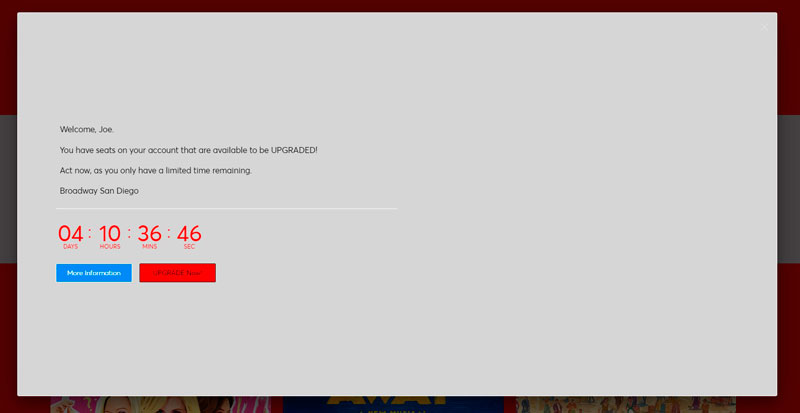
Log in to your season ticket account by clicking HERE. Once logged in, you will see a countdown timer to when your upgrade window will open and a button to get more information.
Step 2:
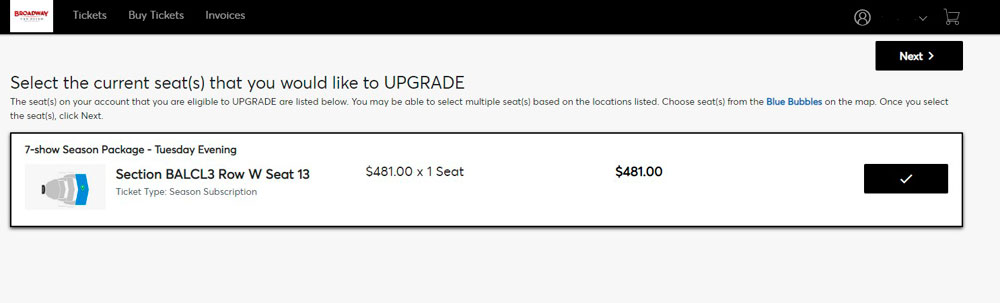
Select which seat(s) you would like to Upgrade. Once you have selected the seat(s) you wish to Upgrade, click “Next” or “Upgrade Seats.”
Step 3:
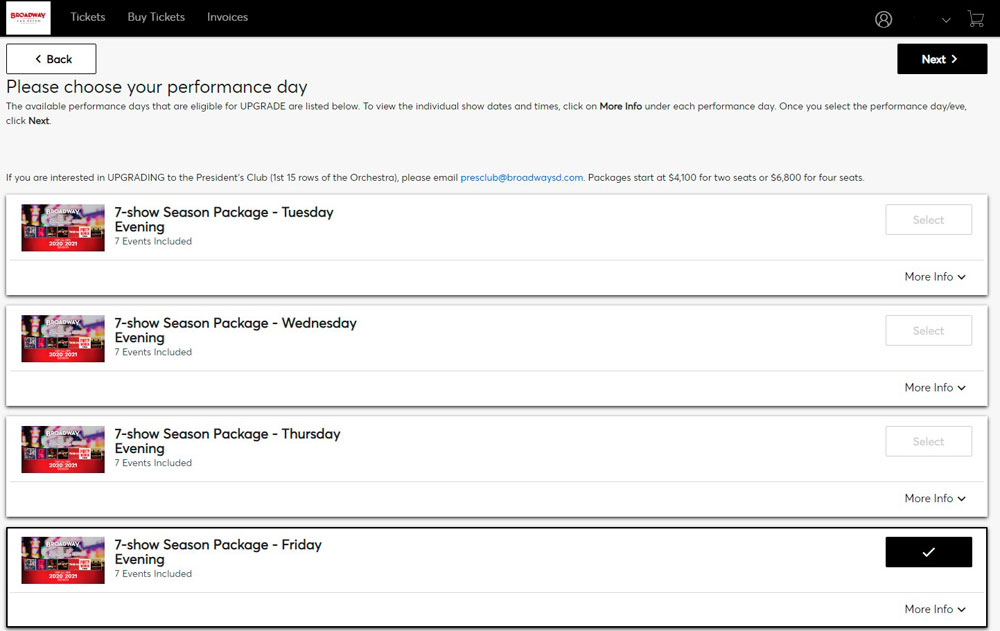
Next you will be able to select your plan. Here you can change the day and time of your current Season Tickets to a different day or time if you choose. If you don’t wish to change the day or time you regularly attend shows, then you may choose to remain in the same day and time. Please select which plan you would like to try and upgrade into and click “Select Plan”. Once you have selected your plan, then click “Next” to then select your seats.
Step 4:
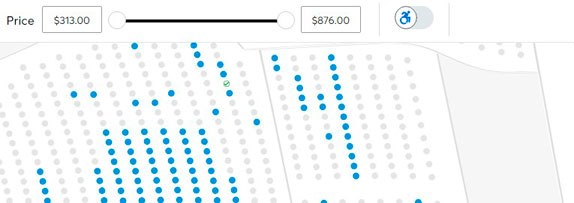
Choose the new section and seats you would like to Upgrade into. Use the + and – buttons at the bottom right of the Map screen to zoom in to see what seats are available.
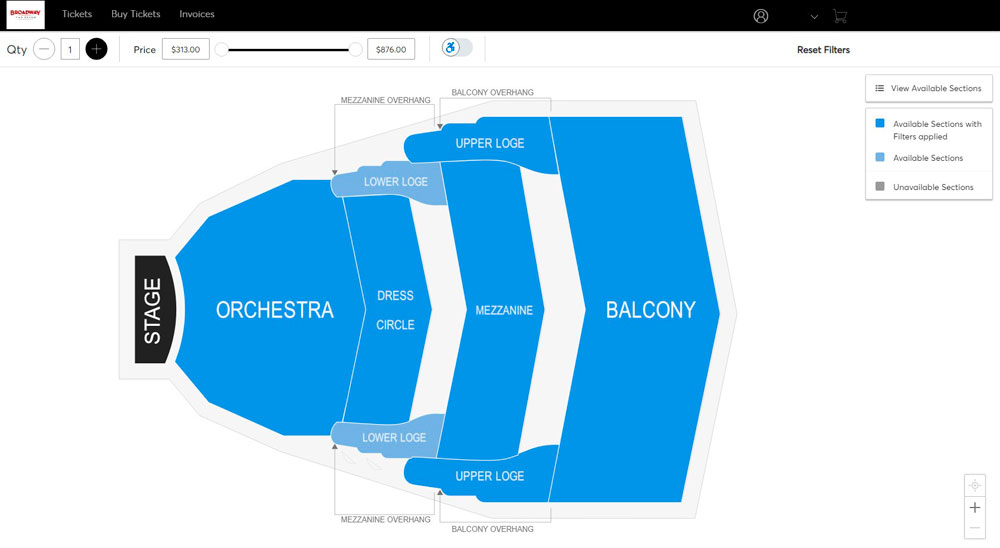
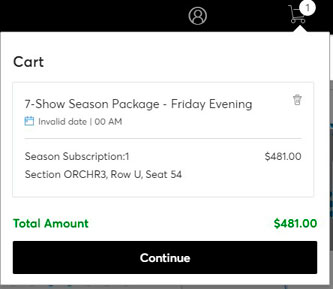
Choose seat(s) from the Blue Bubbles on the map. Once selected, click on the Cart in the upper right and click Continue.
Step 5:
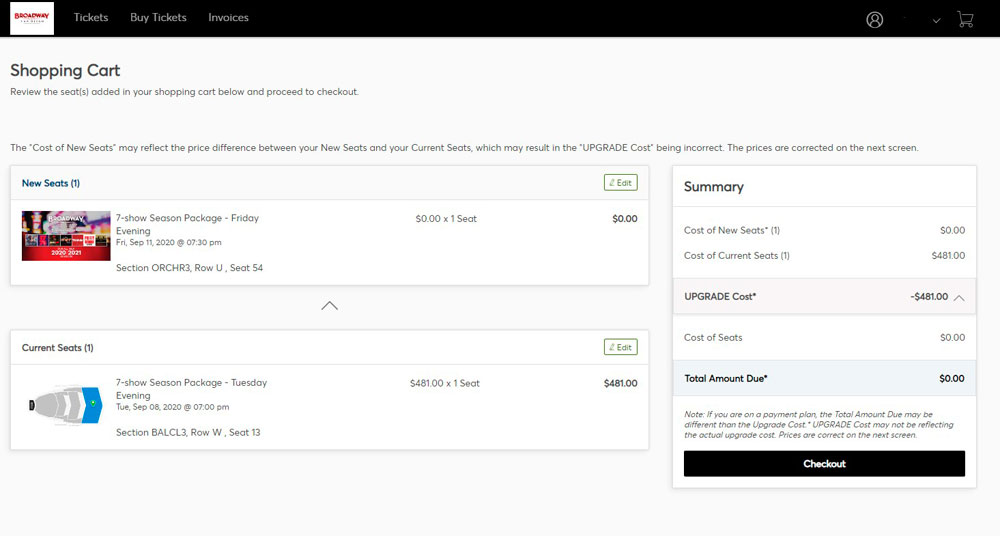
Review your seat locations in the Shopping Cart, then click “Checkout”
Step 6: Delivery Method:
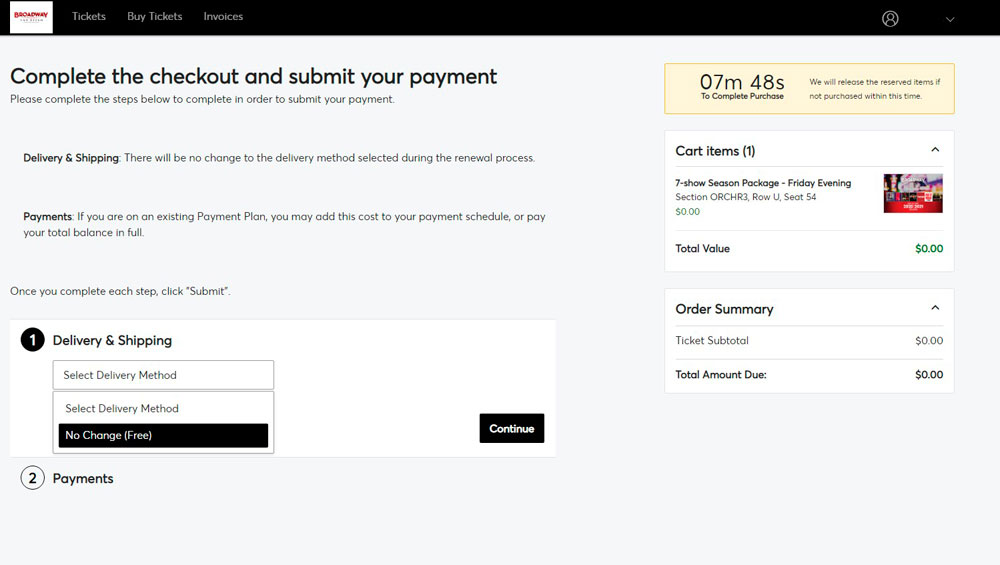
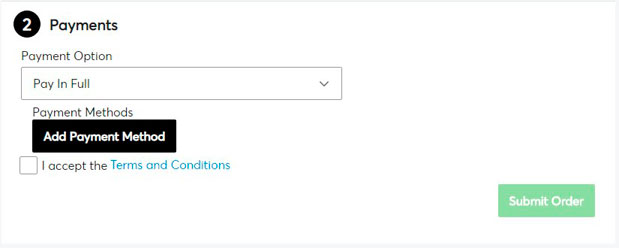
Your delivery method will be what you selected during your renewal process. Payments: If you are on an existing Payment Plan, you may add this cost to your payment schedule or pay your total balance in full. Enter your Method of Payment and click Checkout.




 Our Sponsors